You have a logo. You want notepads. But somewhere between those two things sits a pile of questions nobody warned you about: What size? Which file format? How many sheets? Where does the logo go? At Captain Notepad, we’ve been manufacturing branded notepads from our Denver facility for over two decades, and we see the same avoidable mistakes from first-time buyers every single week. The good news is that ordering custom notepads with your logo doesn’t have to be complicated. It just requires doing things in the right order.
This article walks you through that order, step by step. Pick your specs first, get your logo file ready, plan your placement, preview before you commit, then place the order with confidence. Follow this sequence and you’ll get it right on the first run.
1. Pick your notepad specs before you touch a design file
Many buyers jump straight to the logo before settling on the product itself. That approach creates problems. Size, paper weight, and sheet count all determine how much room you have to work with and how your branding will look, so lock these in before you open any design tool.
Which size actually fits your use case
Three sizes cover the vast majority of promotional notepads and branded office use. The 4″ x 6″ pad is compact, budget-friendly, and a natural fit for trade show giveaways and desk swag, and it’s a common choice for shopping list notepads. The 5″ x 7″ is the workhorse: versatile enough for daily office use, client gifts, and personalized notepads that feel genuinely useful rather than forgettable. The 8.5″ x 11″ is your meeting-room choice, ideal for client-facing use or anywhere staff need serious writing space. The simplest decision rule: think about where the notepad physically lives and who picks it up. That narrows the size quickly. For a quick reference on common dimensions, see this guide to standard notepad sizes.
Paper weight and sheet count: what the numbers mean
Standard writing paper for custom memo pads runs 60, 80 gsm (roughly 16, 20 lb bond). That weight generally performs well with common ballpoint pens and handles everyday note-taking without bleed-through. If you want the pad to feel more substantial, step up to heavier stock. It signals quality in a way buyers notice immediately, even if they can’t articulate why. Sheet counts typically range from 25 to 100 sheets per pad, and chipboard backing is worth considering: it gives the pad a firm writing surface and prevents pages from curling. For anything you’re handing to clients, chipboard is a practical upgrade that is often low-cost or already included depending on your printer.
Binding options and why they matter
Glue-top binding is the standard for custom logo notepads and most branded memo pads. Sheets are bound along the top edge with adhesive, so each page tears off cleanly. It’s the most widely produced binding style, which keeps costs down and makes reordering straightforward. If you need something more durable for heavy daily use, spiral binding is worth a look; otherwise, glue-top is the reliable default for most applications.
2. Getting your logo file print-ready for custom notepads
Sending the wrong file type is the fastest way to get a delayed order or a blurry logo on your finished pads. Printers need specific things from your file, and getting this right once eliminates revision rounds and the frustration that comes with them.
The file formats notepad printing services actually want
Vector formats are the industry standard for a reason. EPS, PDF, and AI files use mathematical curves instead of pixels, which means they scale to any size without losing sharpness. A logo pulled from your website as a JPEG or PNG looks fine on a screen, but when a notepad printing service scales it up for print, the pixelation becomes obvious and the output suffers. Most branding agencies or the designer who created your original logo can export a vector file on request. If you don’t have a contact to ask, that’s covered in the next section. For guidance on how to supply the right logo file to a printer, see this practical walkthrough on how to supply the right logo file for printing.
Resolution, color mode, and bleed: check these before you submit
Run through these three checks before submitting any file:
- Resolution: 300 DPI is the minimum for clean printed output.
- Color mode: All print work requires CMYK, not RGB. Your logo probably lives in RGB on screen, and the color shift when converting to CMYK can be significant for certain hues, especially blues and purples. Ask your printer to flag this before production if you’re unsure.
- Bleed: If your design extends to the edge of the page, add a 0.125-inch bleed margin. Without it, slight shifts during cutting leave a thin white border that looks unfinished.
These checks take five minutes and prevent the most common file-related delays.
What to do if you only have a JPEG or PNG
You have a few options. Ask your printer directly: some shops handle raster-to-vector conversion as a service, sometimes for a small fee. Check with your original designer, who almost certainly has the source file. Or use an online vectorization tool like Vector Magic or Adobe Express to generate an EPS or SVG from your existing image. Automatic conversion works reasonably well for simple logos with clean lines; it works less well for complex illustrations. If you want a step-by-step on converting common raster files, see this guide on how to convert JPG to vector. Whatever route you take, confirm the output looks sharp before submitting it.
3. Logo placement and color matching done right
A clean file in the wrong spot still produces a branded notepad that looks off. Placement and color accuracy are where the difference between professional and amateur shows up clearly.
Where to position your logo for maximum visibility
Header placement, at the top of each sheet, is the most common choice for custom logo notepads. It ensures your brand appears every time someone looks at the page, which matters for recall. Footer placement works for a more understated look, pairing well with contact information or a tagline at the bottom. A watermark or faded background layout gives you full-page coverage with a premium feel, though it works best with simpler logo marks rather than detailed designs. Whatever position you choose, leave at least 0.25 to 0.5 inches of whitespace around the logo. Crowding it against the edge or the writing area makes the pad feel cluttered and reduces legibility.
CMYK vs. spot color: which one your brand actually needs
CMYK (four-color process) handles most full-color logos well and is the default for standard notepad printing. The limitation is that CMYK mixes four inks to approximate your brand color, which means slight variation from what you see on screen is possible. Pantone spot color uses a pre-mixed ink with a specific formula code, locking in an exact hue with no approximation. If your brand has a defined color standard and your clients associate a specific shade with you, spot color is worth requesting. If your logo uses gradients, photography, or multiple colors, CMYK is the practical and cost-effective choice. For a deeper comparison of CMYK versus Pantone spot color, review this primer on the difference between CMYK and Pantone.
What else belongs on the page besides your logo
Supporting brand elements like your website, phone number, or tagline work well on branded notepads, but they need to support the logo rather than compete with it. Keep the visual hierarchy clear: logo dominates, contact information sits below it or at the footer. One phone number, one URL, maybe a tagline. Adding social handles, a QR code, an address, and a slogan all at once turns a professional branded pad into a cluttered advertisement. The writing area is the product; your branding is the frame. Keep the frame clean.
4. How to design and preview your custom notepads with logo online
Once your file is ready and you know where the logo goes, the next step is getting it into a design tool where you can see what the finished pad actually looks like before you commit to a print run. Guessing is how you end up with 250 notepads you’re not happy with.
Why previewing before ordering matters more than most people realize
What you see on a monitor and what comes off a press can differ, particularly for color. A live preview with your logo uploaded catches placement issues, sizing problems, and color concerns before they become a production mistake at quantity. Many buyers who skip this step end up requesting a revision, which adds time and cost. Reviewing a digital proof also gives you a final chance to check margins, verify text accuracy, and confirm the overall layout feels right. It’s a short step that pays off every time.
Captain Notepad’s free online design tool: upload, preview, order
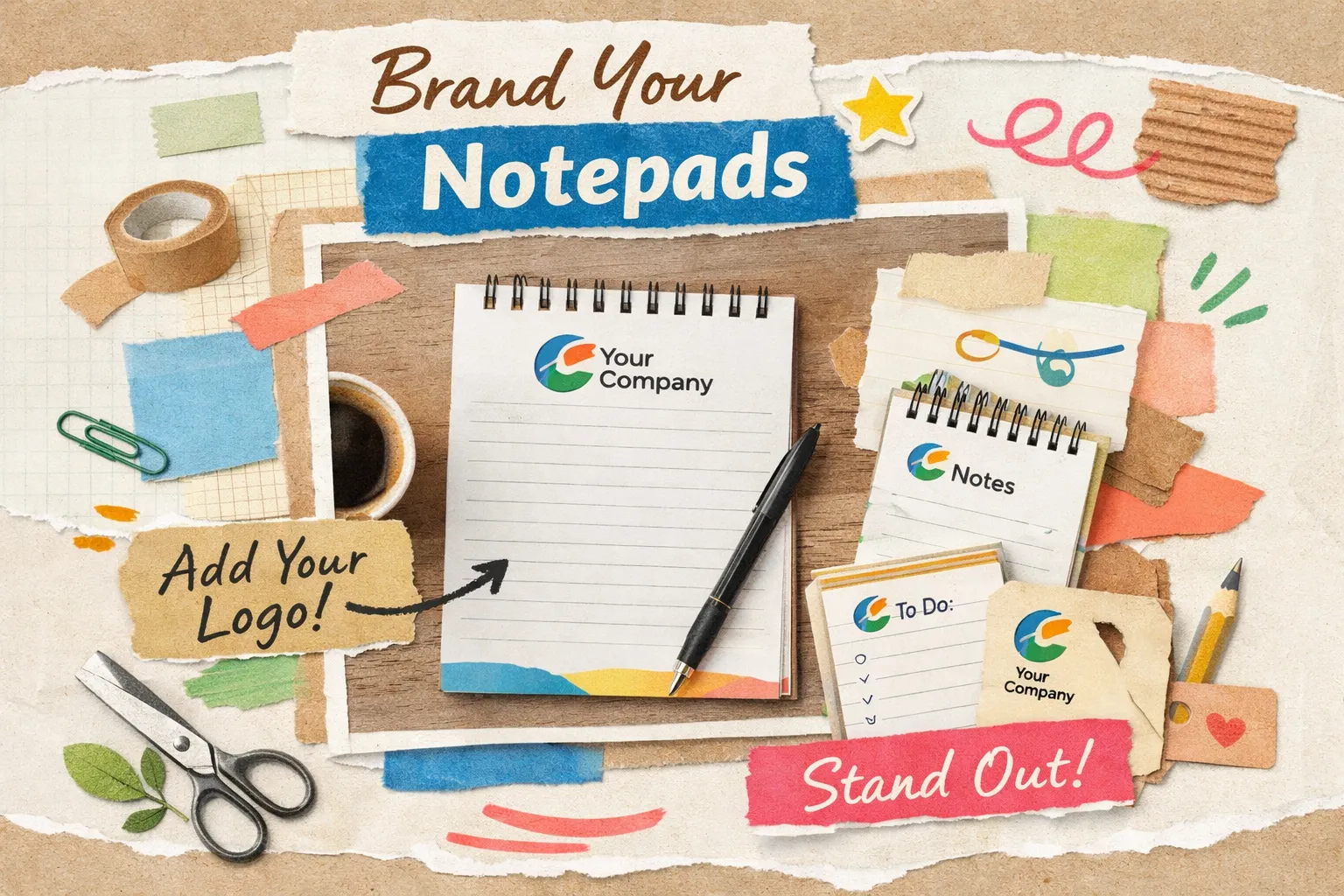
Captain Notepad’s free online design tool is built for exactly this workflow. Upload your logo file, select your notepad size, adjust the placement on the preview, and see the finished layout before you place a single dollar on the order. No design experience required. The flow is straightforward: pick your product, upload your file, position your logo, review the proof, and move to checkout. Pick up your finished notepads with confidence, knowing what you approved is what gets manufactured and shipped directly to you. If something looks off in the preview, you catch it there, not after production. Learn more about our approach in Good Notes Lead to Great Outcomes.
5. Quantities, pricing, and how long it takes
Once the design is locked, you still need to decide how many to order, what to budget, and when they’ll arrive. These variables connect more tightly than most buyers expect.
What branded notepads cost at different quantities
Per-unit pricing drops significantly as quantity increases. At 50 units, expect to pay roughly $3.26 to $4.17 per pad, depending on size and sheet count. At 250 units, that range falls to $0.75 to $2.08 per unit, a sweet spot for most businesses doing occasional giveaways. At 500 units, pricing for a standard 6″ x 9″ pad with 25 sheets runs around $1.40 to $1.94 per unit. At 1,000 units, per-unit costs continue to drop based on volume discounts, often reaching $0.50 to $1.50 depending on specs. Note that these ranges reflect general market pricing and may vary by printer and spec; confirm current pricing directly with your vendor. Ordering printed notepads in bulk makes strong economic sense if you have ongoing use planned: the per-unit savings at 500 versus 50 units are substantial. Factor in setup fees, paper upgrades, and any special finishes when budgeting, as these add to the base cost.
Standard production timelines and rush options
Most custom logo notepad orders carry a production window of 3 to 5 business days. Rush production at 1 to 2 business days is available from many printers, but comes with restrictions on quantity and size, check with your specific provider to confirm availability. Shipping time is separate and adds to the total lead time. If you have a hard deadline for an event, trade show, or campaign, build in buffer and call the printer directly to confirm what’s achievable. Personalized notepads that need to arrive by a specific date require a conversation, not just a website order. The earlier you start, the more options you have.
Get your custom notepads with logo right the first time
The process comes down to six steps done in the right order. Choose your specs first: size, sheet count, paper weight, and binding. Prepare your logo file in vector format with CMYK color mode, 300 DPI resolution, and a 0.125-inch bleed if needed. Plan your placement and decide whether standard CMYK or Pantone spot color fits your brand. Preview the design using a tool that shows you exactly what you’ll receive. Select a quantity that fits your budget and planned use. Then place the order.
Getting custom notepads with your logo right the first time isn’t complicated. It just requires doing things in sequence rather than jumping ahead. Many of the most common mistakes we see at Captain Notepad, blurry logos, wrong sizes, color surprises, trace back to skipping one of these steps.
Ready to start? Browse the Captain Notepad product catalog, upload your logo using our free design tool, and see your branded notepad before you commit to printing. USA-made, factory-direct, and built for businesses that want professional results without the guesswork. Start your design at captainnotepad.com.
